The first time I needed this, a mod I'd sunk forty hours into broke overnight because the game shipped a patch that rewrote half its scripting API. The mod author had moved on. The old version was the only fix — and Steam, famously, has no "previous version" button. That rabbit hole eventually became this site. If that's exactly your situation, there's a dedicated walkthrough for downgrading to keep your mods working that pairs the rollback with pinning the mods to match.
People land on this page for all kinds of reasons: a speedrun category frozen on an old patch, an update that tanked performance on their hardware, a multiplayer community that stayed behind (when everyone needs the same build, see matching game versions for multiplayer), or plain archival instinct before a delisting. The workflow is the same for all of them, and once you've done it twice it takes about five minutes. It isn't limited to games either — the identical manifest steps cover rolling back non-game software on Steam when an app's update breaks your setup. Let me walk you through it the way I'd show a friend.
01The 60-second theory
You only need three numbers, and it helps to know what they mean so the command isn't magic incantation:
- AppID — the game itself. Team Fortress 2 is 440, PAYDAY 2 is 218620. It's right in the store URL.
- DepotID — a container of files inside the app. Games usually split content across several: one for game content, one for Windows binaries, maybe one per language. This trips people up, and we'll come back to it.
- ManifestID — a snapshot of one depot at one moment in time. Every time the developer pushes an update, Steam writes a new manifest. Old manifests don't get deleted — that's the entire trick. A manifest ID is a long number like
7617088375292372759, and it's the closest thing Steam has to a time machine.
The Steam client only ever offers you the newest manifest. DepotDownloader talks to the same content servers but lets you ask for any manifest — as long as Steam agrees to serve it, which is the asterisk we'll deal with later. If you want the deeper anatomy, I wrote up the whole content system on the how it works page.
02Before anything else: check for an official legacy branch
I know you came here for the manifest workflow, but honestly — check this first, it's saved me hours. A lot of developers quietly publish old versions as beta branches: right-click the game in Steam → Properties → Betas, and look through the dropdown. Factorio keeps practically every major version there; PAYDAY 2 has had legacy branches; Paradox grand-strategy titles like Stellaris keep a deep shelf of older patches in that dropdown; plenty of indie devs add a previous-version branch precisely because players ask.
If your version lives in a branch, you don't need manifest IDs at all. DepotDownloader can pull a branch directly:
$ ./DepotDownloader -app 427520 -branch 1.0 -username you(Heads up if you're reading older forum guides: this flag was called -beta for years. Version 3.x renamed it to -branch — same behaviour, new name. Password-protected branches take -branchpassword.) One thing to know before you lean on a branch: it's a moving pointer, not a frozen snapshot — the branches reference explains when to use -branch and when to pin the exact build with -manifest instead.
Branch downloads are also the most future-proof method, because manifests in active branches are exactly the ones Steam still serves without complaint. No branch? Okay — manifest hunting it is.
03Step 1 — Find the manifest IDs on SteamDB
SteamDB is a community database that has been recording every depot and manifest Steam has pushed for over a decade. It's where every downgrade starts.
- Search your game on steamdb.info and open its app page. Confirm the AppID at the top.
- Open the Depots tab. You'll see a list like "Game Content", "Windows 64-bit binaries", "english voice". Note the IDs of every depot your platform actually needs — for a typical Windows game that's the content depot plus the Windows binaries depot. Skip depots for other OSes and languages you don't use.
- Click into a depot, then open its Manifests tab. This is the full changelog: every manifest ID with its date and size, newest first.
- Find the date you want and copy the manifest ID. Repeat for each depot — and take the manifests from the same date, or you'll end up with mismatched binaries and content that crash on launch. SteamDB's "Patches" / build history view helps line them up if the dates are dense.
04Step 2 — Build the command
One depot, one command. Here's the shape of it — this example pulls an old CS build (app 730, depot 731) on Linux/macOS:
$ ./DepotDownloader -app 730 -depot 731 -manifest 7617088375292372759 \
    -username you -remember-password -dir ./old-build
On Windows it's .\DepotDownloader.exe with the same flags; on a Steam Deck the Linux shape above is what you want, with the Deck-specific quirks covered in the downgrading on the Steam Deck guide. A few things worth knowing:
- You need to log in with an account that owns the game. Steam checks the license before handing over the depot key; there is no way around that, and this tool doesn't try — if you're hoping to roll back a game you don't actually own, that wall is where it stops. Free games and most dedicated servers work anonymously (just omit
-username). -remember-passwordstores a login token (not your actual password), so the next run won't ask again. If typing your password into a terminal makes you itch, use-qrinstead and scan the code with the Steam mobile app — I use this on machines I don't fully trust. More on all of that on the FAQ.-dirkeeps each depot's download in its own folder. For multi-depot games I download into the same directory one command after another — the files merge into one game tree, which is exactly what you want.- Interrupted at 80%? Run the same command again; it resumes. Paranoid about corruption? Add
-validate.
Now repeat the command for every depot you noted, swapping -depot and -manifest — or do it in one shot: both flags accept lists, so -depot 218621 218622 -manifest A B pulls two depots at once (the IDs pair up in order). Either way, a few minutes later you have a complete old build sitting in ./old-build. The full flag syntax lives in the CLI reference.
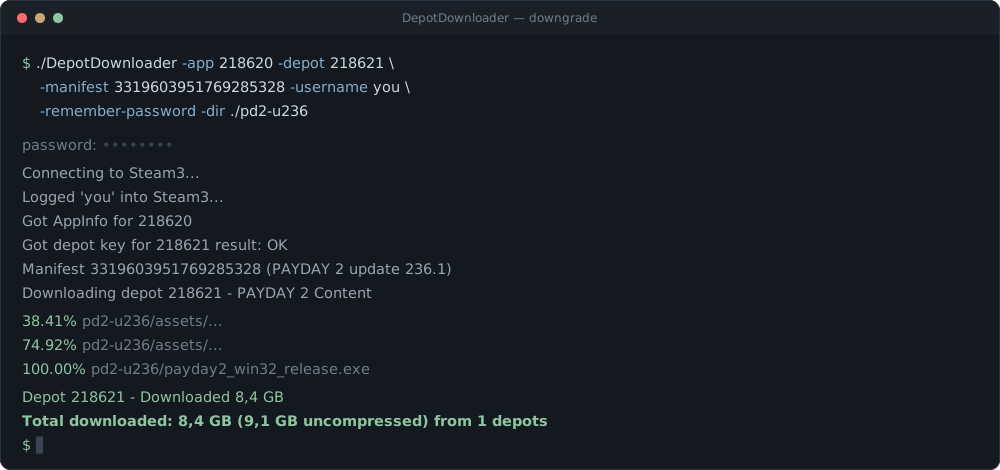
Total downloaded … from 1 depots line at the end is the "it worked" signal. Original, drawn for this page.Or skip the typing entirely — paste what you copied from SteamDB and take the command below:
05Step 3 — Install it, and keep Steam's hands off it
The downloaded folder is a plain game install — no installer, no registry, just files. So:
- Back up the current version — rename
steamapps/common/YourGametoYourGame.currentor move it elsewhere. You'll want the way back. - Copy the downloaded build into
steamapps/common/YourGame(or wherever the game lived). - In Steam: right-click the game → Properties → Updates → set to "Only update this game when I launch it". Then launch the game from the executable, or through Steam in offline mode, if you want to be extra safe. Steam can't silently re-update a game it never gets asked to launch-check.
appmanifest_<appid>.acf in steamapps/ (setting StateFlags to 4 and pinning the buildid) — it works, but Steam rewrites that file whenever it feels like it, so treat it as a band-aid, not a fix. Multiplayer with VAC on mismatched versions is its own minefield: old builds are for offline, mods and private servers, not ranked matchmaking.
Undoing it, when you're done with the old version: there's no special revert. Restore the backup you renamed in step 1 (or delete the old build), set Updates back to automatic, and let Steam pull the current version — or just hit "Verify integrity of game files," which repairs you straight back to live. Untick the read-only flag first if you set one on the .acf. Nothing here is permanent; the worst case is a redownload of the current build.
One practical note before you start: a downloaded build is a full second copy of the game, so make sure you have the disk space for it — the old version doesn't replace the current one until you copy it over, and if you keep versions side by side (recommended), budget for each. Point -dir at a drive with room; pre-allocation reserves the full size up front. What to do with the folder once it's down — run it in place, copy it over, or have Steam adopt it — is its own walkthrough in after the download.
06When it fails: the manifest lockdown of 2025
Time for the part most guides pretend isn't happening. Around January 2025, rollbacks that had worked for years started dying with this:
No manifest request code was returned for depot 218621 manifest 8295275944386105794
Encountered 401 for depot manifest 218621 8295275944386105794. Aborting.
Here's what's actually going on. Steam requires a manifest request code — a short-lived server-issued token — for every manifest download. The system appeared in 2021 and became mandatory in May 2022. DepotDownloader requests these automatically and you never notice them… until Steam declines to issue one. That 401 isn't a bug in the tool, and no flag will fix it: the refusal happens server-side, before a single byte of game data moves. In 2025 Valve significantly tightened which manifests get codes, and developers got the ability to block access to old manifests for their games entirely.
From what I've seen across my own testing and the long-running GitHub discussion #573, the practical picture looks like this:
- Still works: recent manifests (roughly the last few), anything referenced by an active branch — which is why the branch check comes first in this guide — and games whose developers haven't restricted history.
- Often dead: deep history of big titles — multi-year-old builds of games like GTA IV or CS. Same command, same ownership, 401.
- Weirdly inconsistent: people in that thread report one account getting a code while a friend's account is refused for the same manifest. I can't give you a clean rule because Valve hasn't published one.
I keep a running status of what works and what doesn't on the live status page — check it before you spend an evening fighting a 401. The honest summary as of mid-2026: downgrade paths through active branches are reliable; deep manifest history is a coin flip that's been landing on tails more often each year. If preservation matters to you, the lesson is brutal but simple — download the builds you care about while their manifests are still warm.
07Plan B: the Steam console method
There's a built-in fallback that uses the Steam client itself — no extra tools. Paste steam://open/console into your browser (or Win+R), and the client opens with a console tab. Then:
> download_depot 218620 218621 8295275944386105794Files land in steamapps/content/app_<appid>/depot_<depotid>, with no progress indicator beyond a console line when it finishes. It authenticates as you, the same license rules apply, and in my experience it's subject to the same manifest restrictions — but I've seen cases where one method succeeded after the other failed, so when a build really matters I try both before giving up. Increasingly, though, the console method only fetches the current build or refuses old manifests outright; the full story of why, and the one-line migration, is on the download_depot page. DepotDownloader is still the better daily driver: resumable, scriptable, works headless, shows you what it's doing.
08TL;DR cheat sheet
| Step | Where | What |
|---|---|---|
| 0 | Steam → Properties → Betas | Old version in a branch? Use -branch, done. |
| 1 | steamdb.info → Depots → Manifests | Copy manifest ID per depot, same date across depots |
| 2 | terminal | -app -depot -manifest -username -dir, repeat per depot |
| 3 | steamapps/common | Back up, copy over, updates → only-on-launch |
| 401? | section 06 | Manifest restricted server-side — try branches, try console |
Something broke that this page doesn't cover? Tell me — and check the GitHub discussions, where the maintainers and a decade of accumulated edge cases live. The FAQ covers the safety and account questions I get most.