01The three numbers
Every download command is built from three IDs, nested inside each other:
- App ID — the game itself (e.g. Team Fortress 2 is
440). Feeds-app. - Depot ID — one bucket of the game's files. A game is split into depots: base content, per-platform binaries, language packs, DLC. Feeds
-depot. - Manifest ID — a specific version of one depot: the exact file list at one point in time. This is what pins the version you want. Feeds
-manifest.
The home for all three is SteamDB — a community database that exposes Steam's content structure that the store hides. (If you only need the current version, you don't need any of this; this lookup is for choosing a specific older one. The concepts behind these terms live in the glossary; this page is purely how to look them up.)
02Finding the App ID
The easiest of the three — it's the game's number, and there are several ways to read it:
- Store URL — open the game's Steam store page; the number in the address is the App ID:
store.steampowered.com/app/440/. - In your library — right-click the game → Properties → Updates lists the App ID; or Browse Local Files and look at the
appmanifest_440.acffilename insteamapps\. - SteamDB search — search the game's name at steamdb.info; the App ID is on its page. This is the way for a game that's been removed from the store (no store URL to read), since SteamDB keeps the page.
Once you have the App ID, the canonical page is steamdb.info/app/<appid>/ — everything else hangs off it.
03Finding the Depot ID — and picking the right one
On the game's SteamDB page, open the Depots tab. You'll see a list, and the question is which one(s) you need. The patterns:
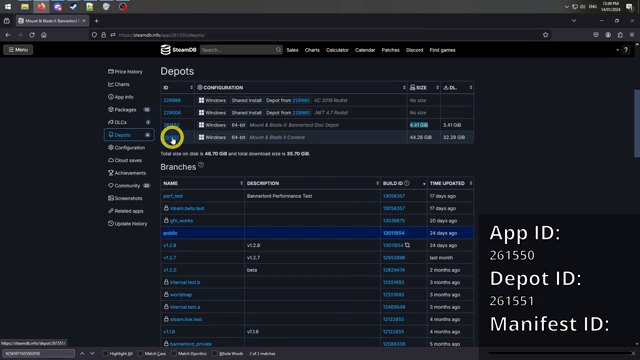
- Base content — usually the depot named after the game, the largest one. For many games this single depot is the whole download.
- Per-OS binaries — some games split the executable into Windows / macOS / Linux depots (Team Fortress 2's
232251/232252/232253). Take the one for your platform plus the shared content depot. - Languages — separate depots per language; only needed if you want a non-default language (see OS & language).
- DLC — each DLC (and many soundtracks) is its own depot, which is how you can download just one piece (see selective downloads).
Rule of thumb when unsure: pick the depot with the game's name and the biggest file size — that's the base content. If the game uses several depots for one version, you'll feed them all (DepotDownloader takes a list of depots and a matching list of manifests). Note also the branch/beta column — a depot may carry separate public and password-protected branches; the version you want might live on one of those (the glossary defines branches). Click a depot to open steamdb.info/depot/<depotid>/.
04Finding the Manifest ID — the version step
This is the one that actually pins the version. From the depot's page, open its Manifests tab (steamdb.info/depot/<depotid>/manifests/). You'll see a chronological list: each row is a manifest — one snapshot of that depot — with a date and a long Manifest ID number.
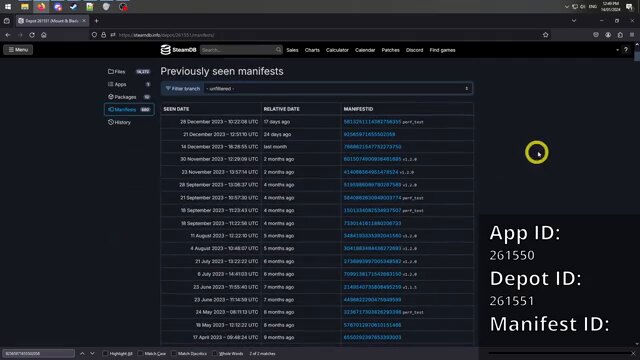
SteamDB labels manifests by date, not by version name, so the workflow is:
- Find out when the version you want shipped — the game's patch-notes history (SteamDB has a Patchnotes tab; the game's wiki usually lists update dates too).
- On the Manifests tab, find the row whose date matches that update (take the manifest dated on or just before the version you're targeting).
- Copy the Manifest ID from that row. That's your
-manifestvalue for this depot. If you're downloading several depots, grab the same-date manifest from each.
05Build ID vs Manifest ID — don't grab the wrong number
The single most common mix-up. SteamDB shows two kinds of version number, and DepotDownloader wants only one:
| Build ID | Manifest ID | |
|---|---|---|
| What it is | A global, ever-incrementing number for the whole app, bumped on every patch. | A snapshot of one depot at one point in time — the actual file list. |
| Where on SteamDB | The Builds tab (app-level). | A depot's Manifests tab (per-depot). |
| Relationship | One build = a set of manifests, one per depot. The build is the patch; the manifests are its pieces. | |
| DepotDownloader uses | ✗ — not accepted. | ✓ — this is the -manifest value. |
So if you copied a number from the Builds tab and the command rejects it, that's why: you need the Manifest ID from a depot's Manifests tab, not the Build ID. The mistake I made the first time was grabbing the tidy Build ID off the Builds tab and feeding it straight to -manifest — it bounced, and it took me longer than I'd admit to realize I was on the wrong tab entirely. The Builds tab is still useful — it's a clean way to read patch dates and see which build is which — but the number you feed the tool comes from the Manifests tab, per depot.
06Putting it together
With the three IDs in hand, the command writes itself — App ID once, then depot/manifest paired up (one manifest per depot, in the same order):
> .\DepotDownloader.exe -app <appid> -depot <depotid> -manifest <manifestid> \
    -username you -remember-password -dir .\my-build
For a multi-depot version, the lists pair one-for-one: -depot 441 232251 -manifest <m-441> <m-232251>. The full workflow around this — installing the tool, logging in, and what to do with the files afterward — is in the universal downgrade guide and after the download. And if the manifest you picked is refused with "no manifest request code," that's not a lookup mistake — it's Valve gating the old manifest, a separate issue.